Free Christmas Zoom Backgrounds: 71 Real Photos of Festive Lights and Snow
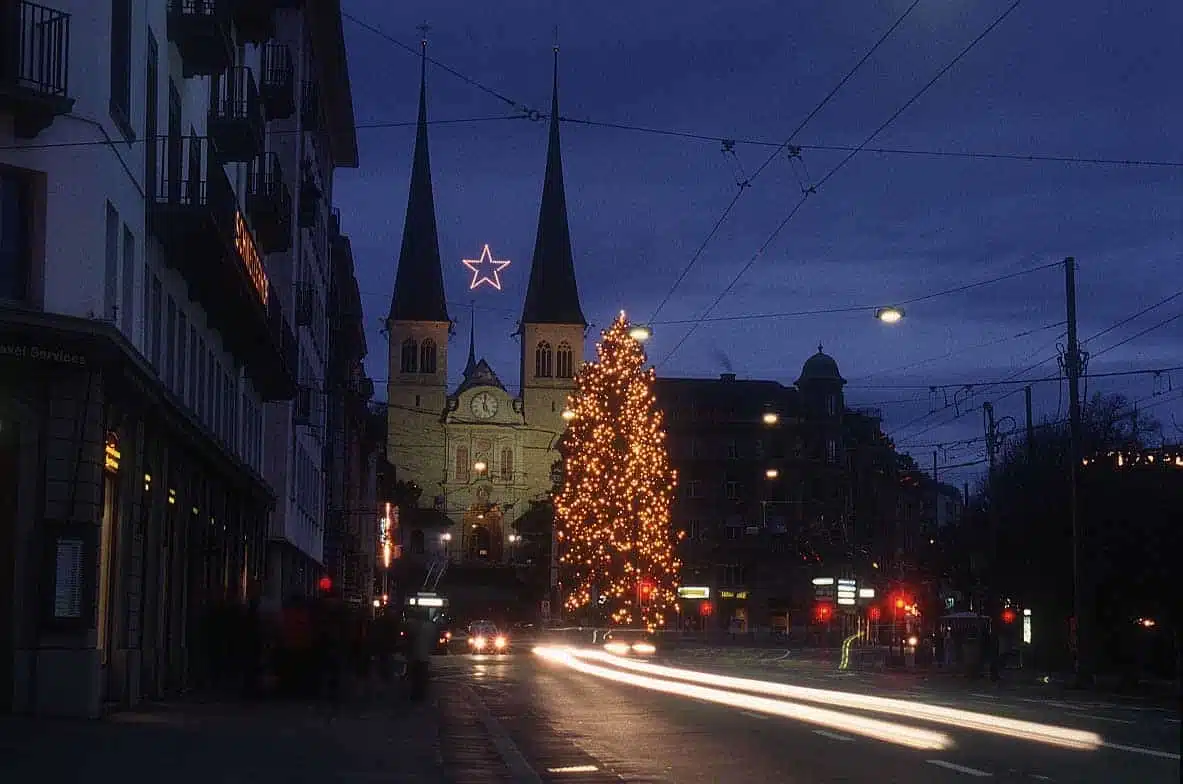
71 free Christmas Zoom backgrounds, all real photos from the BigFoto library rather than AI images: old town streets and squares lit for Christmas, trees and baubles, Advent windows and light figures, snowy villages and quiet winter landscapes. Use them as a virtual background in Zoom, Microsoft Teams or Google Meet, for the office Christmas call, a party with friends or a lesson before the holidays. The winter photos keep working well into January.
How to download: click a photo to see it large, then use Download. The originals are about 1200 × 800 pixels; Zoom and Teams fit them to the wide video frame by trimming a little off the top and bottom, so keep the main subject near the middle.
Christmas lights in old towns
Streets, squares and hotel fronts lit for Christmas after dark, among them a department store in Zurich and a tall tree below two church towers. Warm points of light on a dark sky keep the attention on you.


Christmas trees and baubles
Baubles, stars and a red bow on fir branches, a wreath on a fence and decorated trees in the street: the most festive choice for a team call.


Advent windows, Santa and reindeer lights
House fronts with lit Advent calendar windows, Santa and his reindeer in lights, a snowman, a Christmas tram and a chalet balcony with snowflakes. Fun for a Christmas party or a class call.


Snowy villages and chalets
Wooden chalets under deep snow, a village and houses in winter, and the coloured houses of an Arctic settlement.


Winter landscapes
Snowy fields and forests, frosted trees, winter roads and snow-capped mountains mirrored in a lake. Calm and wide, so they look natural behind you all winter, not only at Christmas.


Plain snow and frost
Snow crystals, wind-shaped snow, ice on a lake and frost on a window: quiet textures with nothing to distract from the speaker.


How to set a photo as your background
Open the photo, click Download and save it. Then add it in your video app (the menu names change a little between versions):
- Zoom: open Settings, choose Background & Effects, then Virtual Backgrounds, and click the plus sign to add the image. In a meeting, the small arrow next to Stop Video leads to the same place.
- Microsoft Teams: before you join, or in a meeting under More, open the video effects and backgrounds, then choose Add new and pick the file.
- Google Meet: click Apply visual effects (the sparkle icon on your video), go to Backgrounds and use the upload button.
Tips: sit facing a window or a lamp so the app can tell you from the background. A calm photo, such as the snowfields or the plain snow, looks most natural behind you; the busy light photos are best for a party call. If your preview shows the photo flipped, that is only your own mirrored view: the others see it the right way round.
More free photos
- Free Christmas pictures
- AI Christmas backgrounds
- Free winter pictures
- Free ice and frost pictures
- AI virtual office backgrounds for Zoom and Teams
- Travel-themed Zoom backgrounds
- Free fireworks backgrounds for New Year
Questions about these Zoom backgrounds
Can I use these Zoom backgrounds for free?
Yes, for personal and commercial projects. All we ask is a link back to BigFoto.com; the box at the top of the page has a credit link you can copy.
Are these real photos or AI images?
Real photos from the BigFoto library. If you want designed Christmas scenes, our AI Christmas backgrounds are made for that, and the AI virtual backgrounds show office rooms and home studies.
Why is the top of the photo cut off in Zoom?
The photos are 3:2 and a video frame is 16:9, so the app trims the top and bottom edges. The subjects here sit near the middle, so little is lost.
Do they work in Teams and Google Meet?
Yes. Any of the three apps takes a JPG you have saved; the steps are above.